 LAKAW
LAKAW
Merchant portal
Every screen in the desk.
Sign in, catalog, bookings, invoices, inquiries, withdrawals, and support. These are the live portal screens.
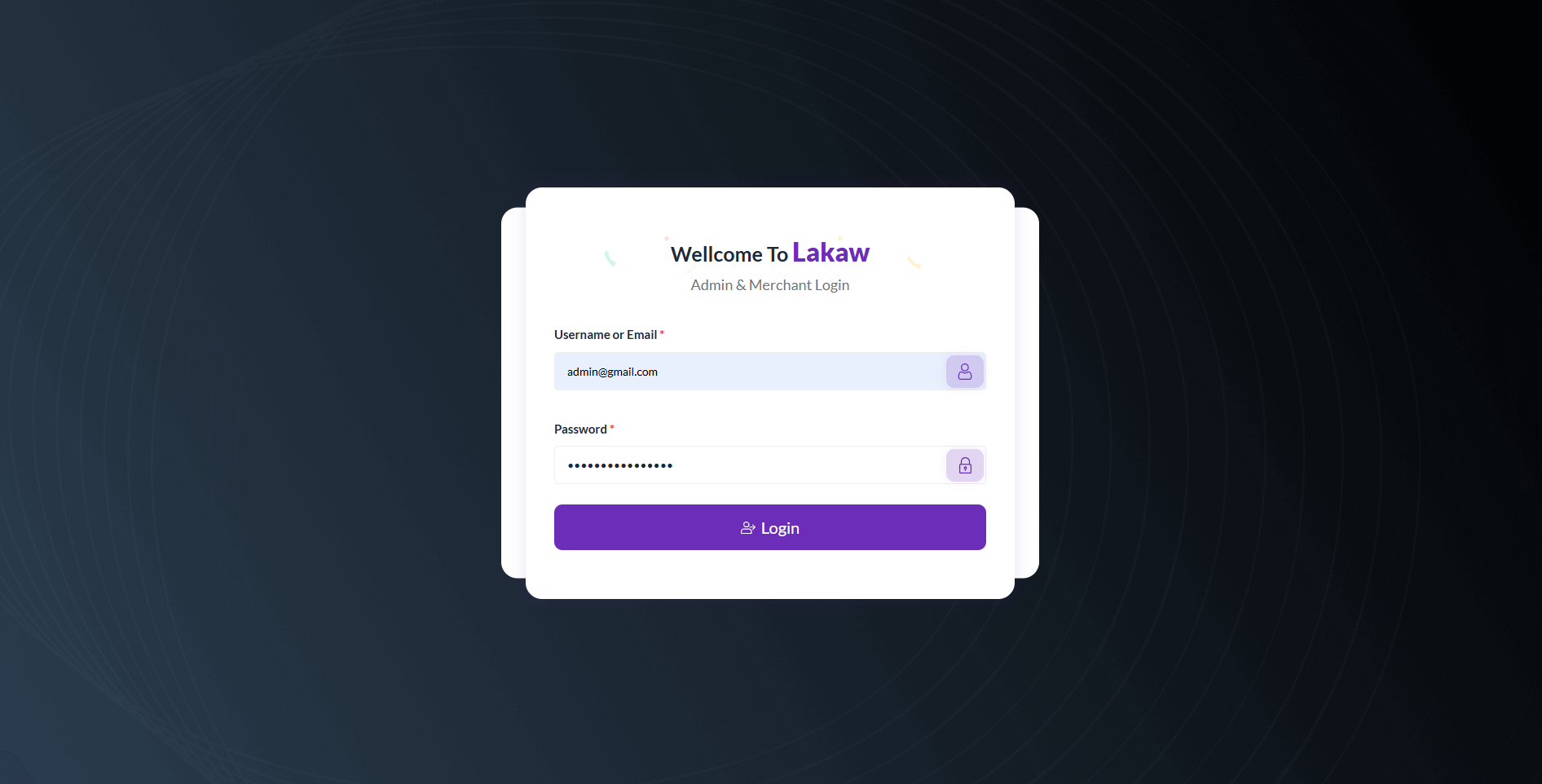
Sign in
Admin and merchant login with a username or email and password.
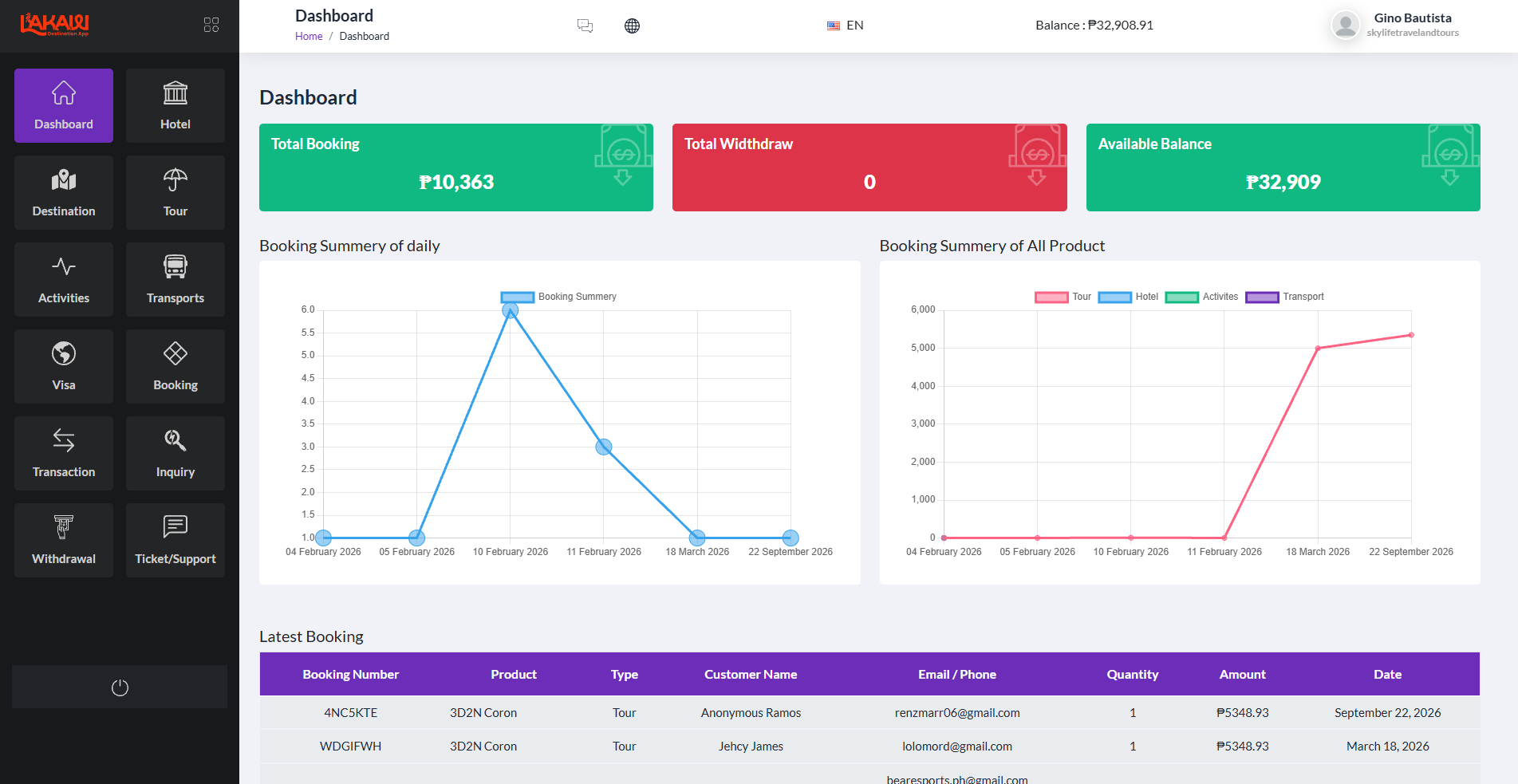
Dashboard
Total bookings, withdrawals, available balance, daily and product charts, and the latest bookings.
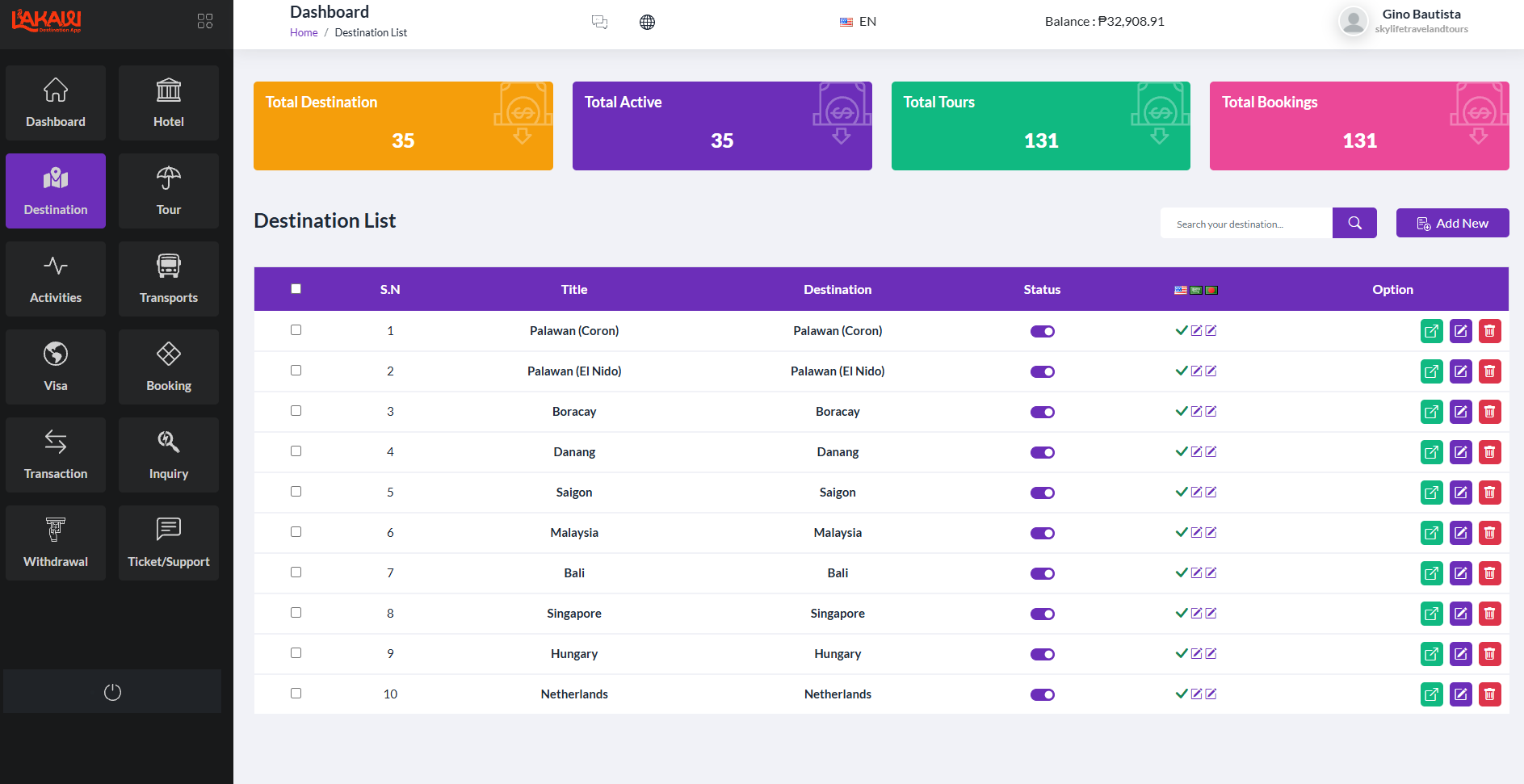
Destinations
List every destination, turn it on or off, and add a new one with content, location, and images.
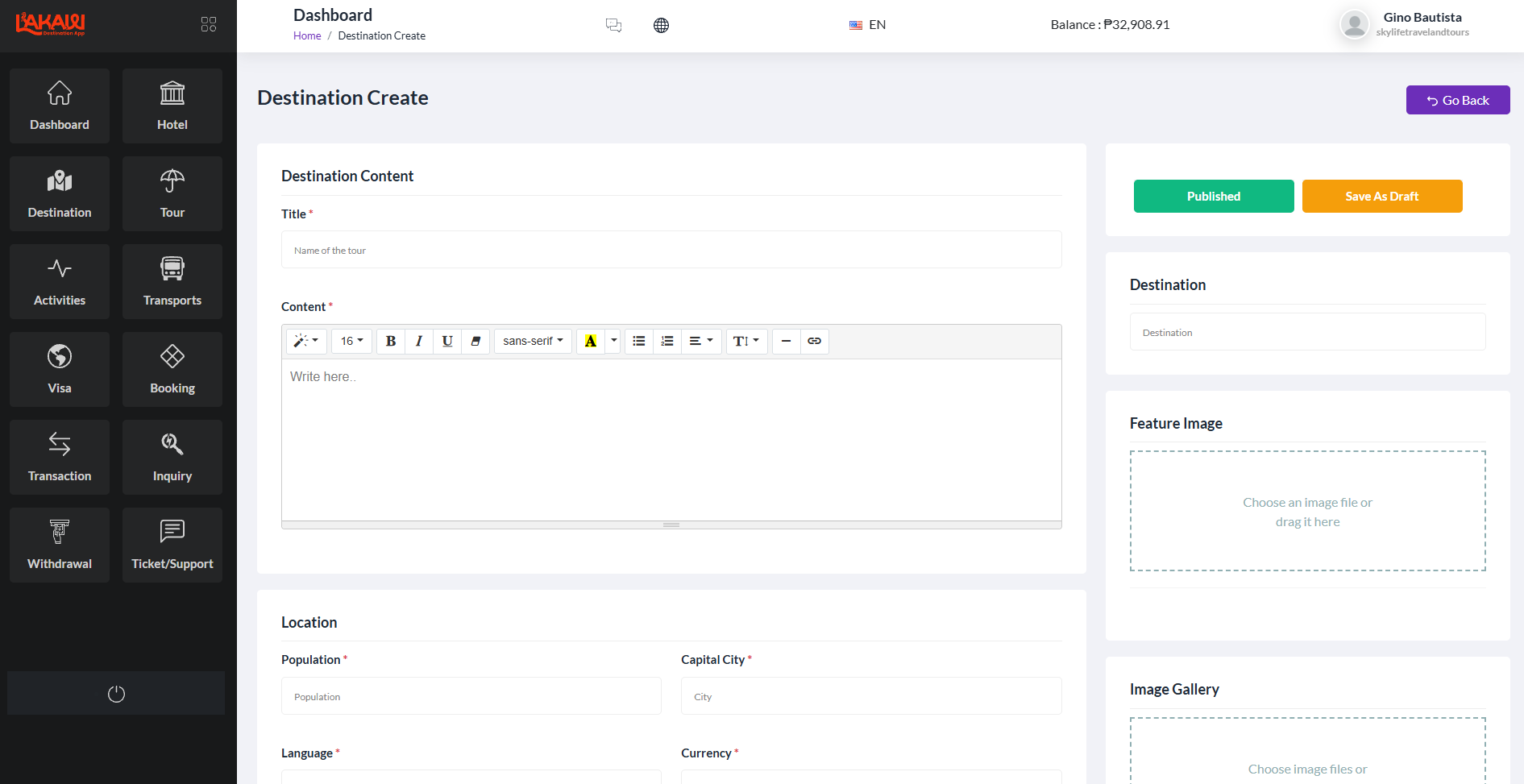
Create a destination
Title, description, population, capital, language, currency, feature image, and gallery.
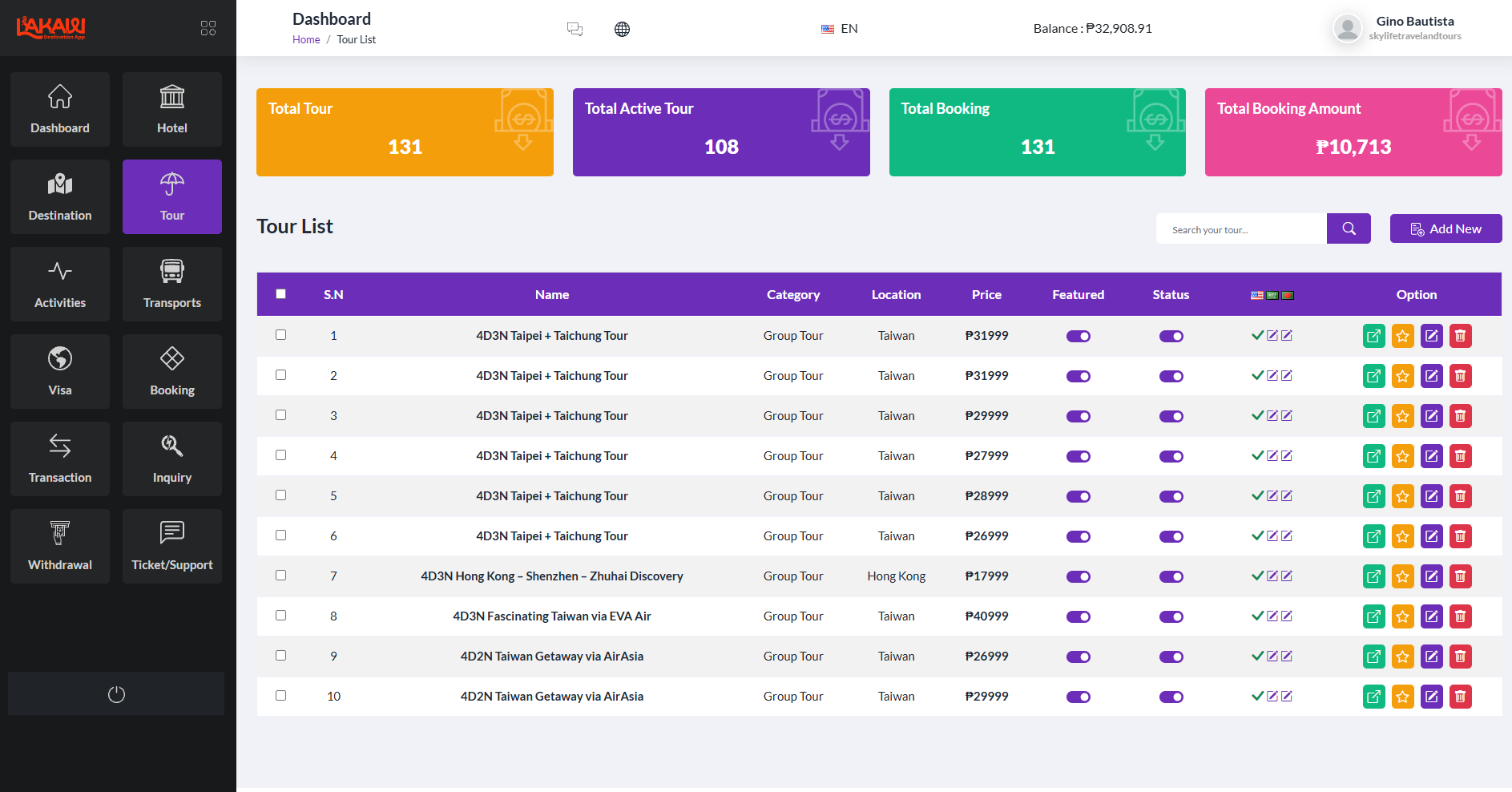
Tours
Search the tour list, mark one featured, and see price, location, and booking totals.
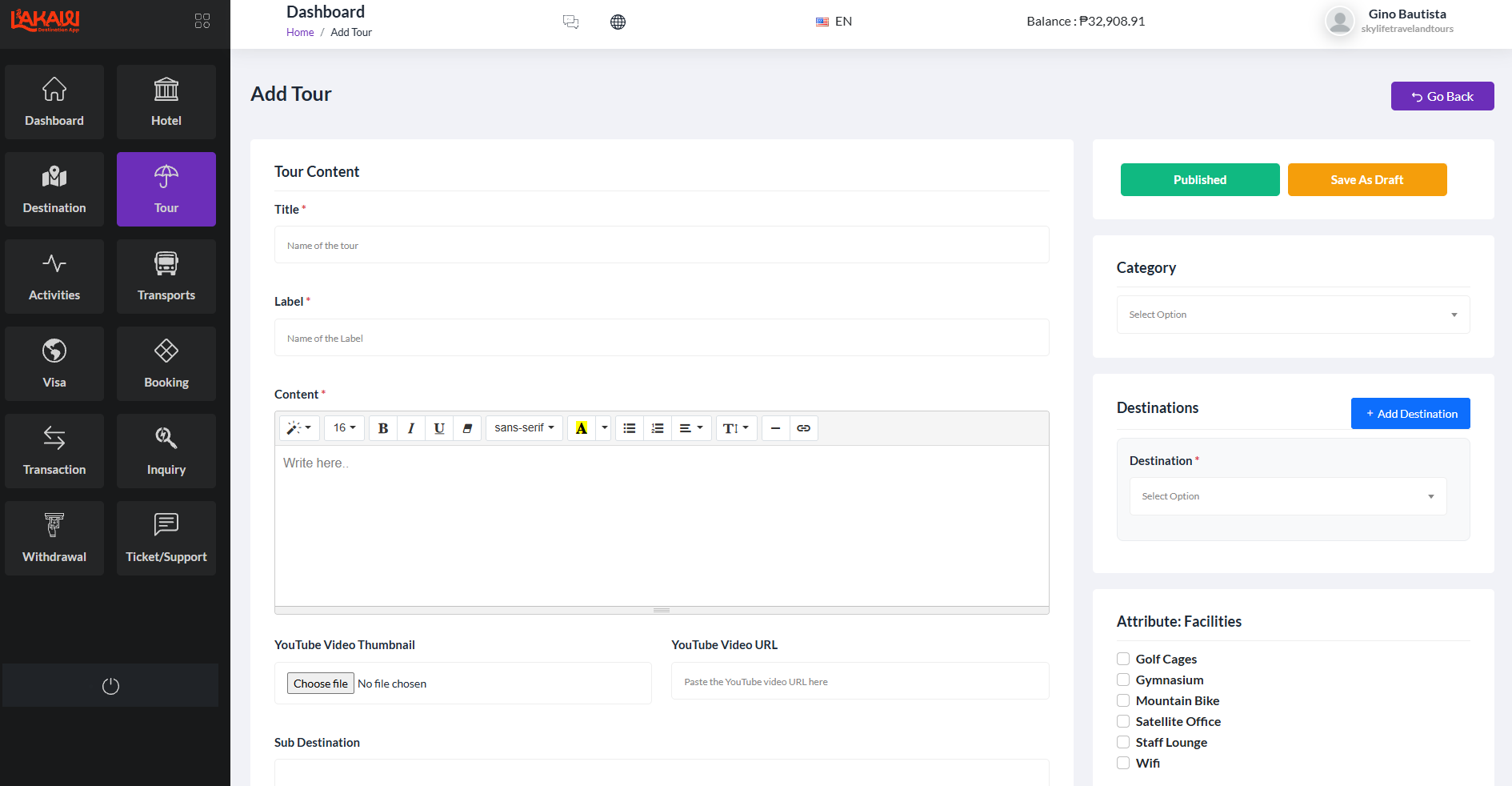
Add a tour
Write the tour, pick a category and destination, attach a video, and publish or save a draft.
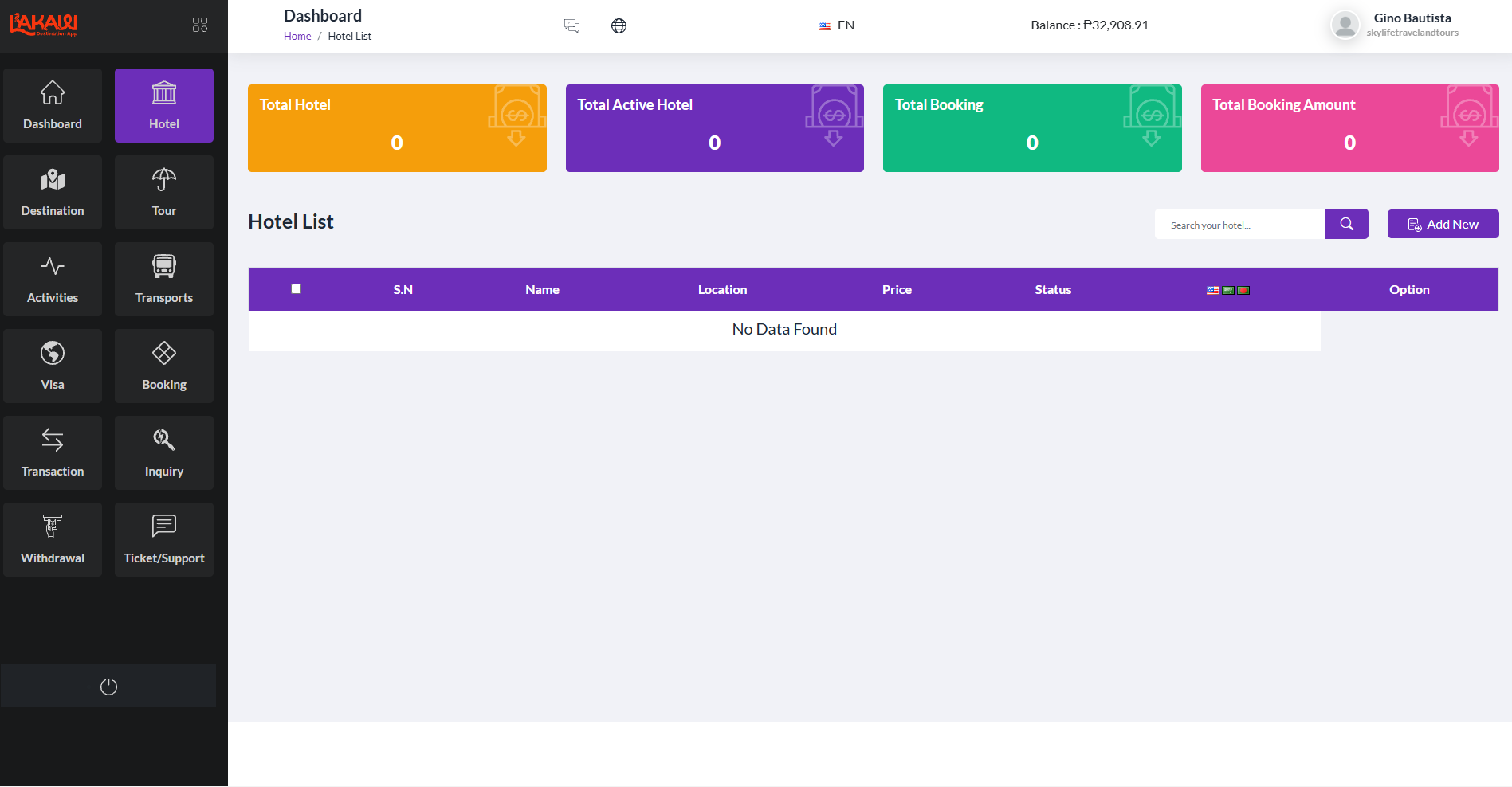
Hotels
Keep a hotel list with location, price, and status, then add a new property when you need one.
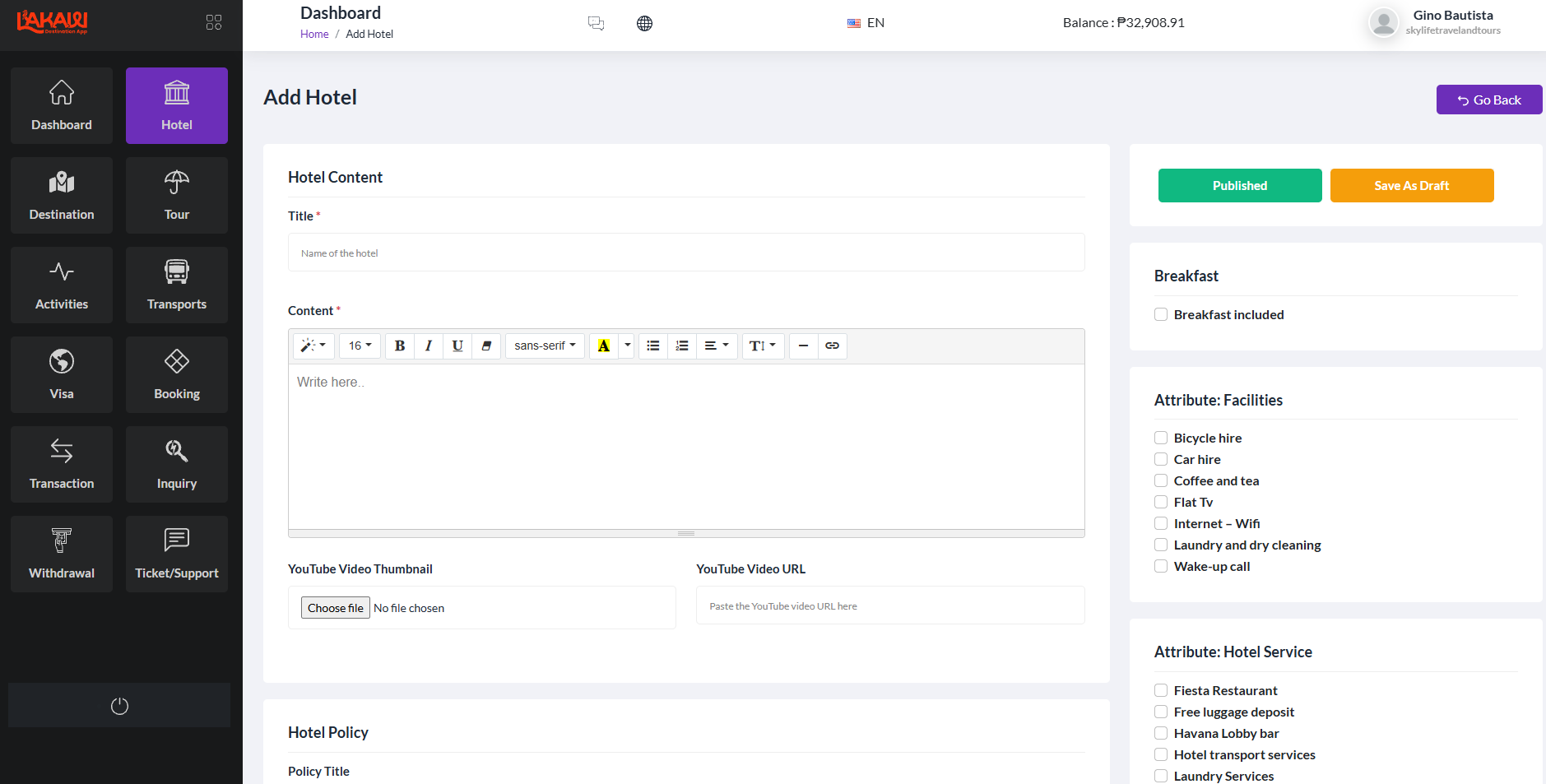
Add a hotel
Hotel content, breakfast, facilities, services, policy, and a YouTube video.
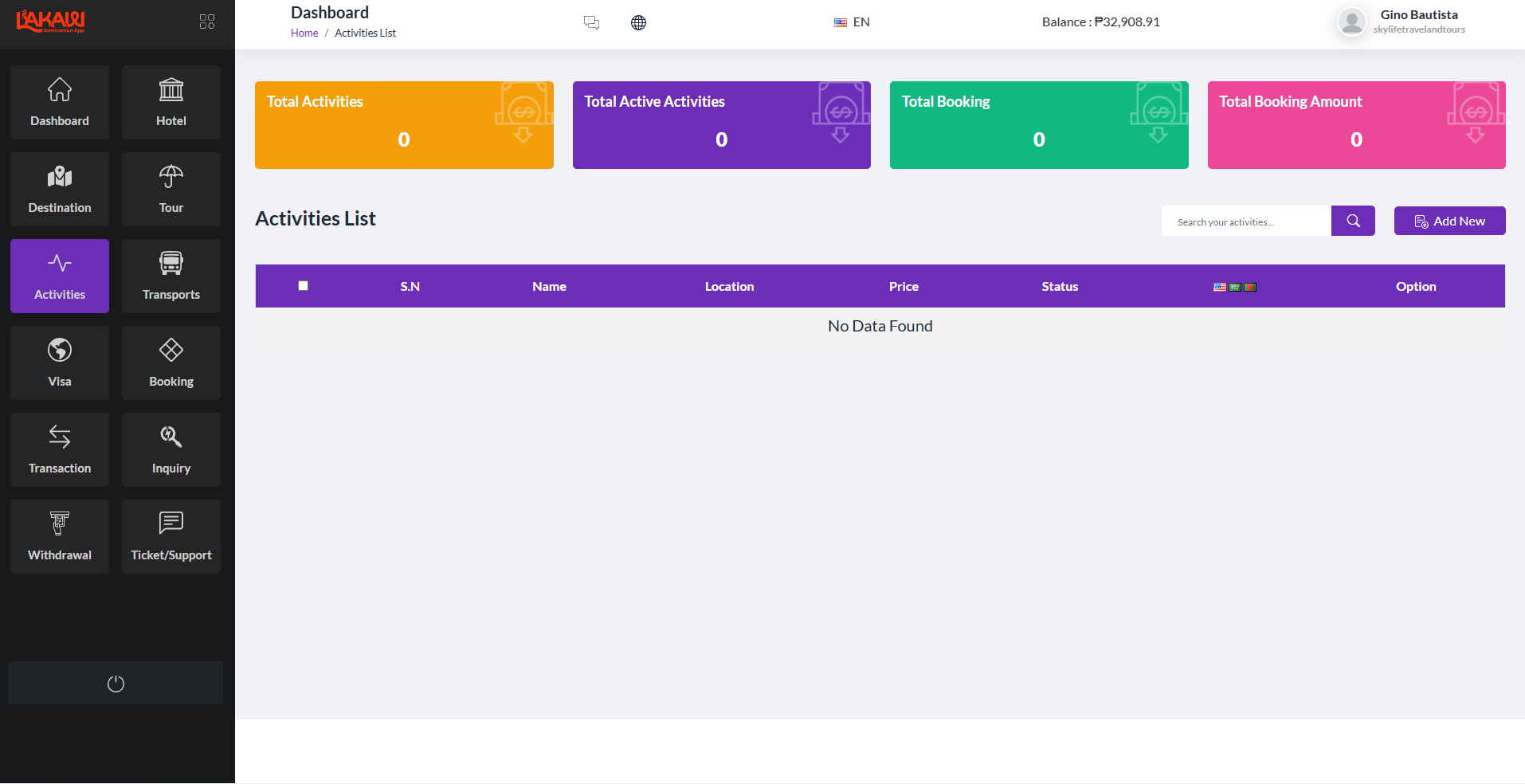
Activities
The same list view for activities: totals, search, and a button to add a new one.
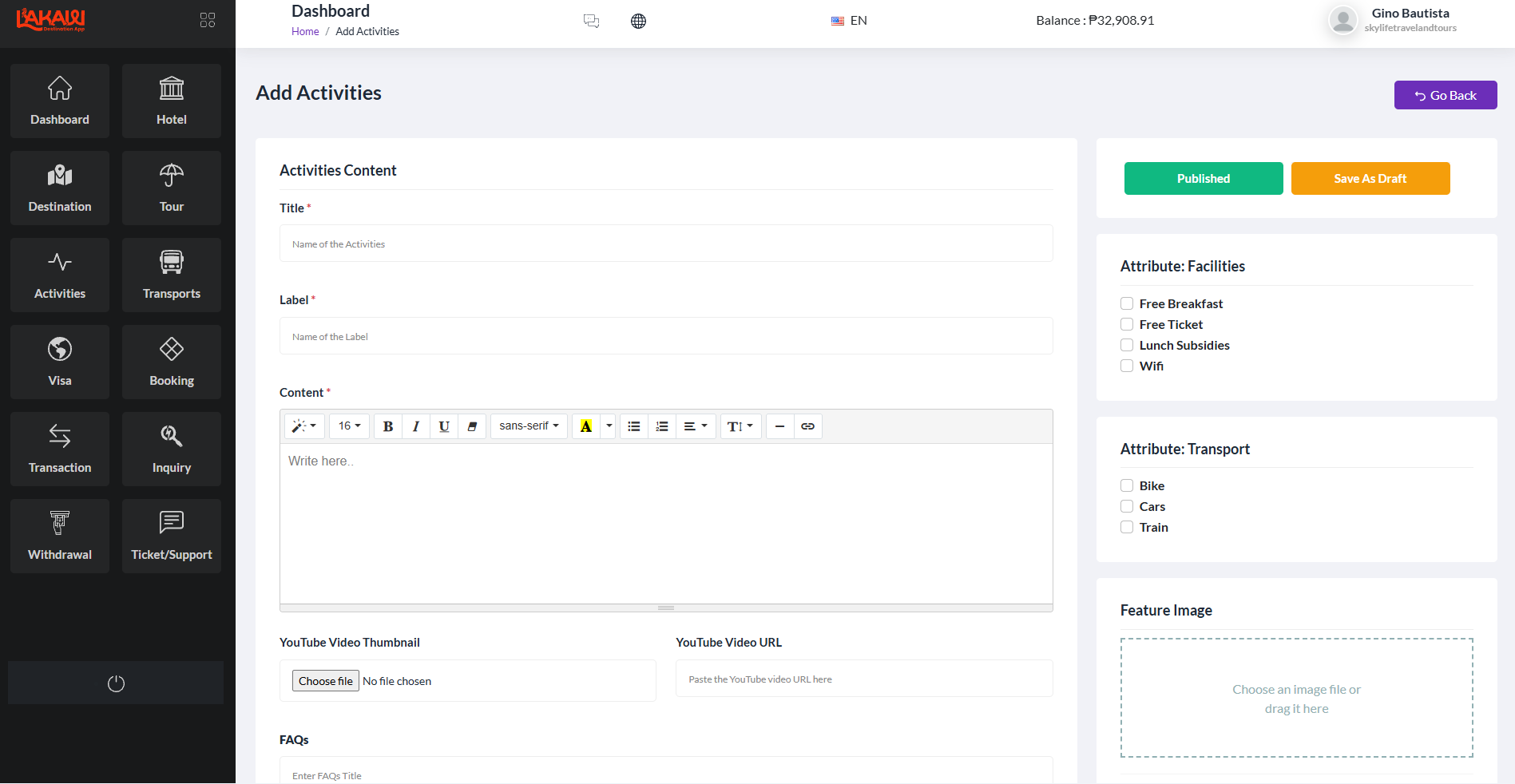
Add an activity
Title, label, description, facilities, transport options, image, and FAQs.
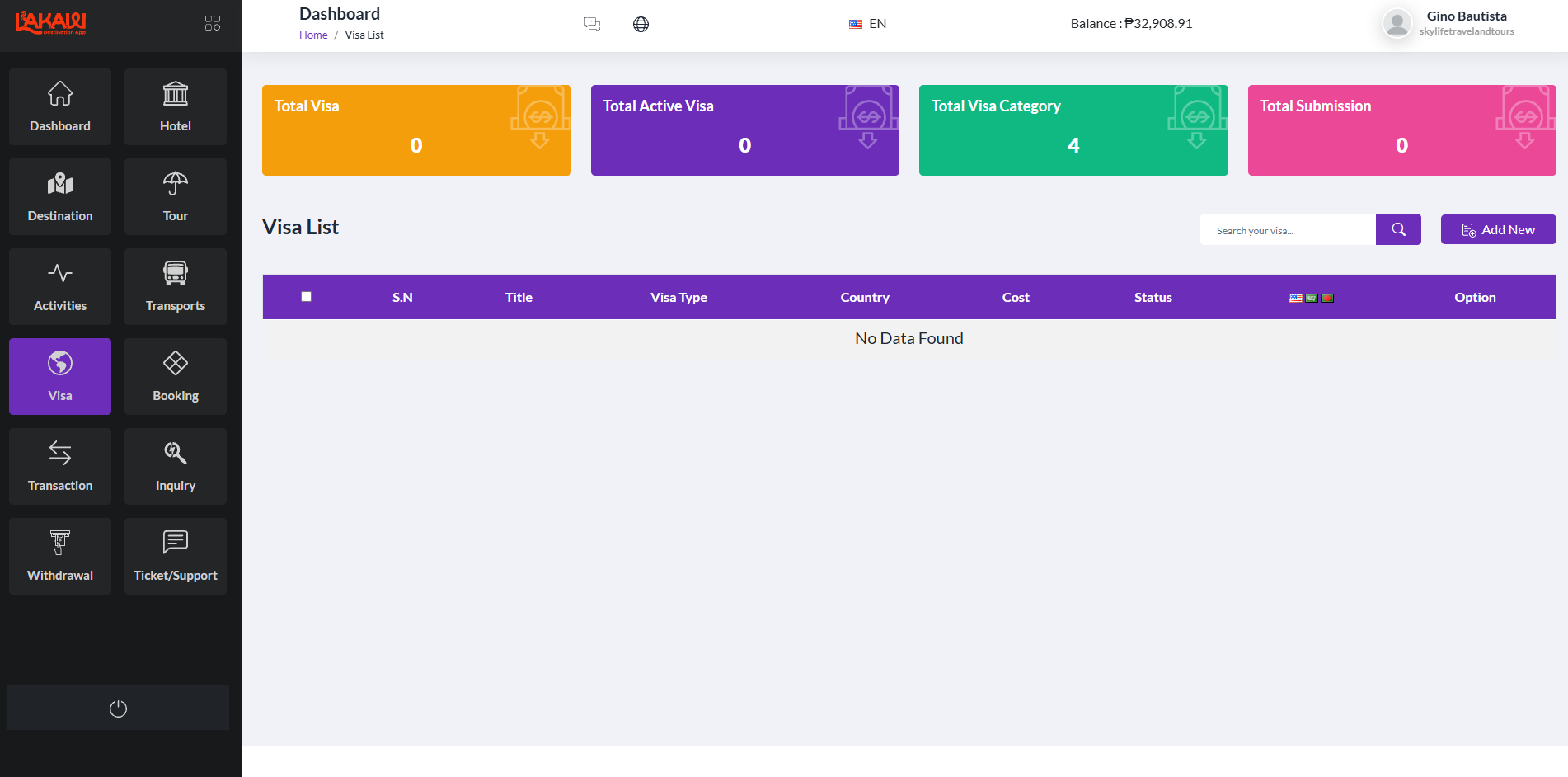
Visas
Visa totals, categories, and submissions, with search and status on each row.
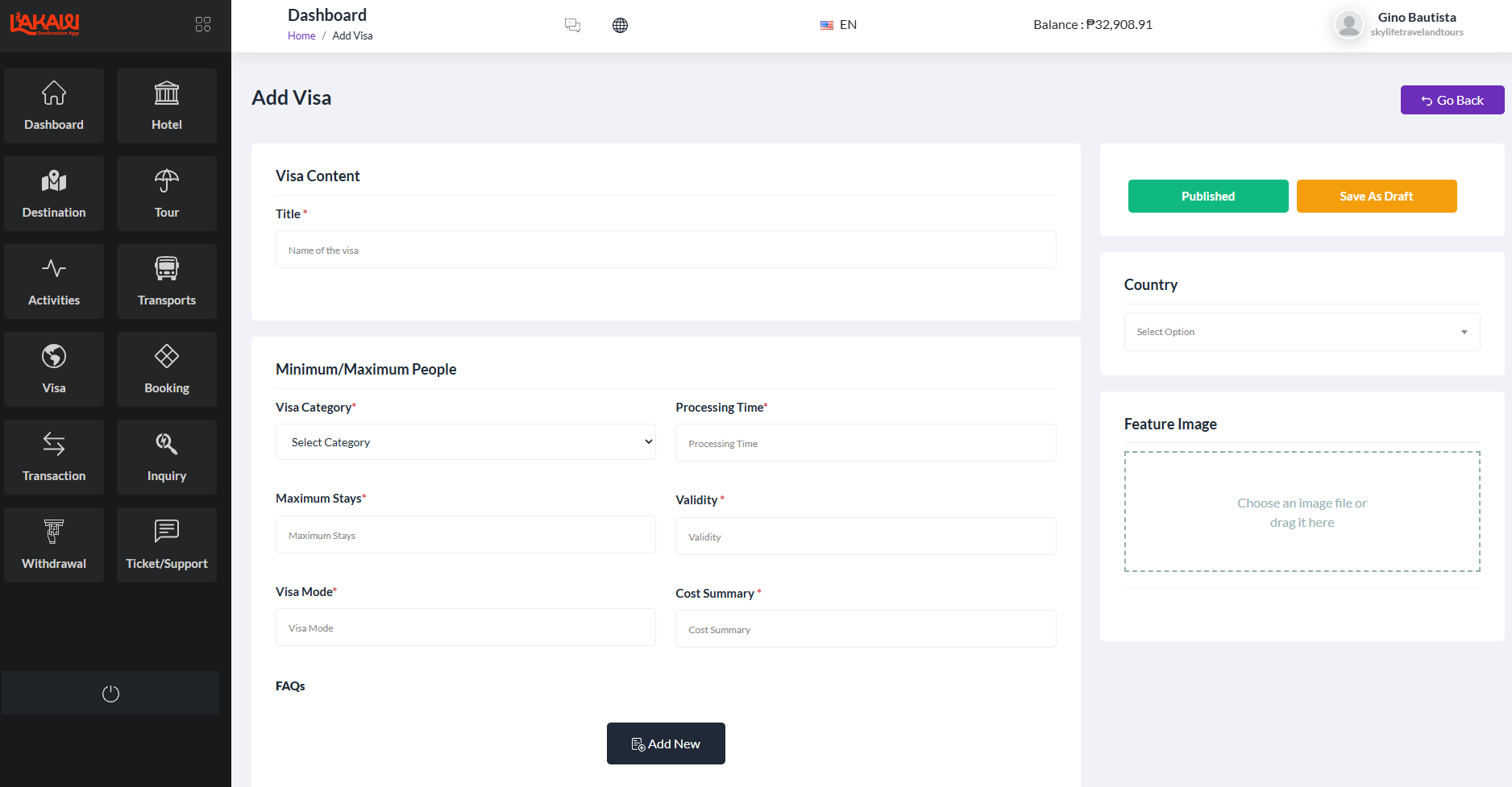
Add a visa
Category, processing time, stays, validity, mode, cost, country, and a feature image.
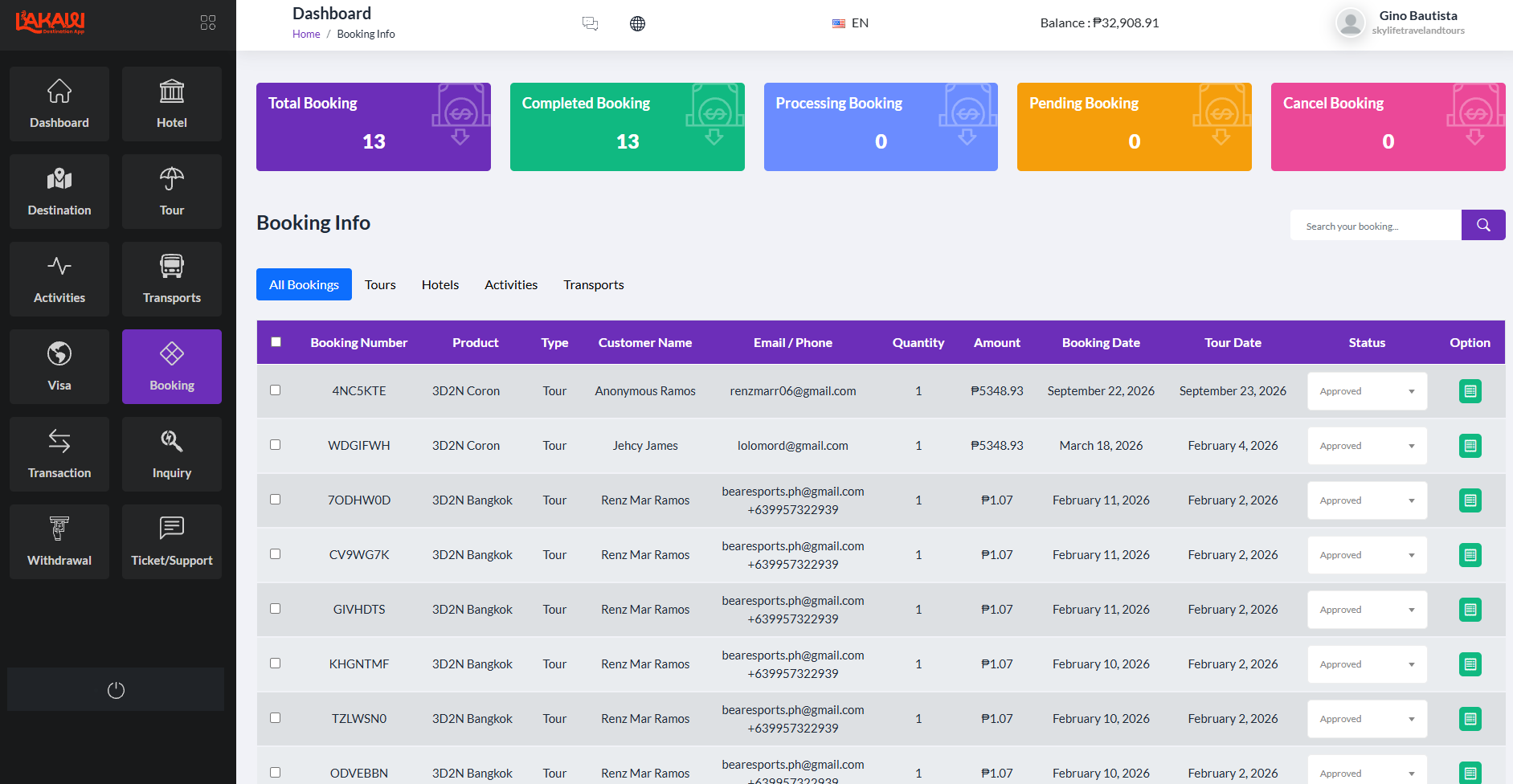
Bookings
Filter all bookings or by tours, hotels, activities, and transport. Update status from the row.
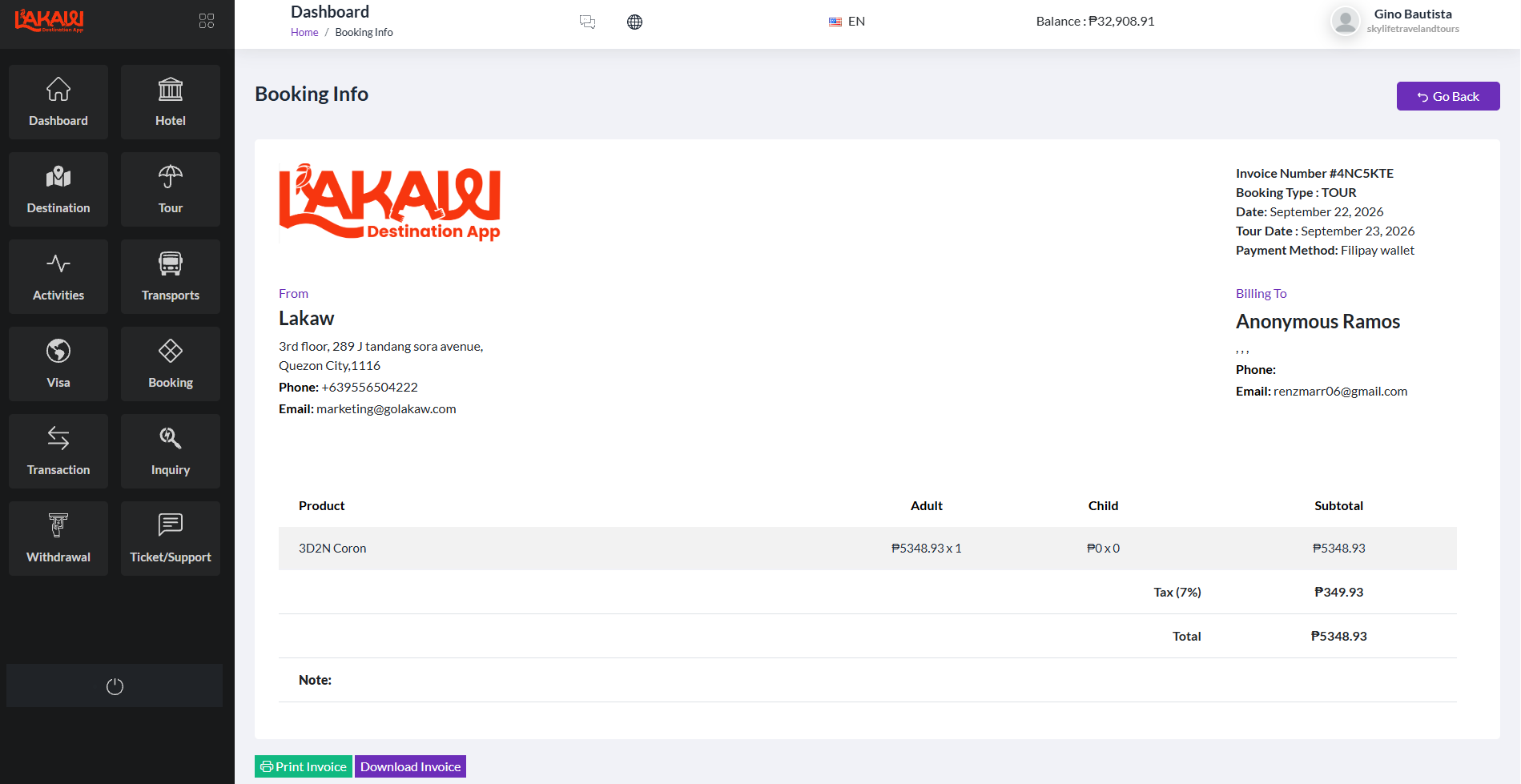
Invoice
Open a booking to see the invoice, tax, total, and payment method. Print or download it.
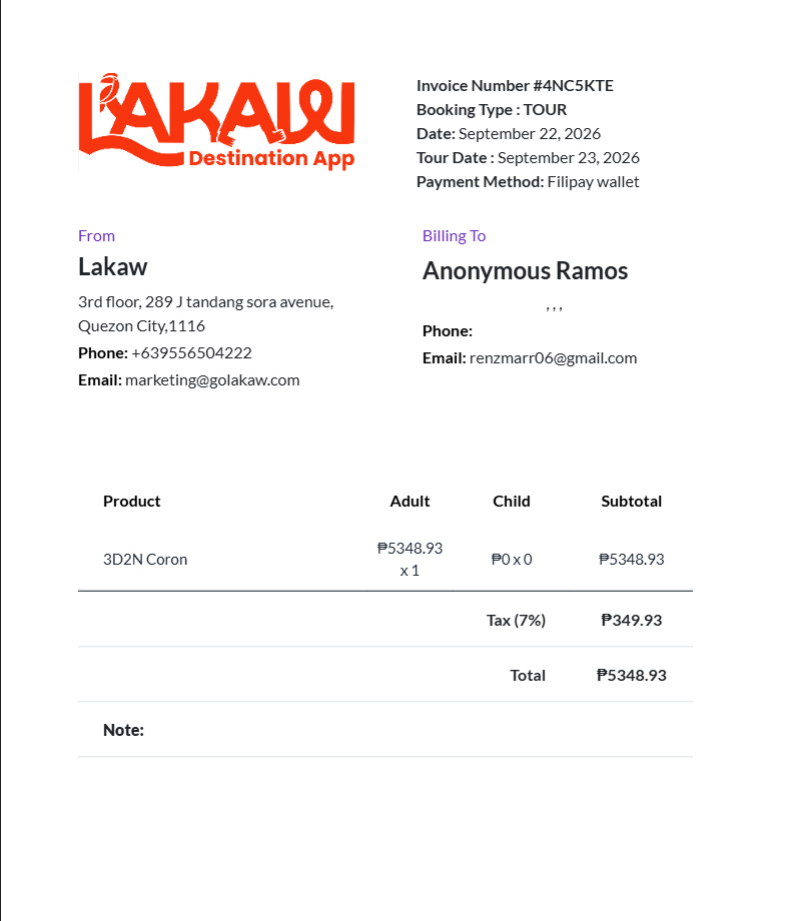
Printable invoice
The same invoice on a clean page for print, with adult and child counts and the total.
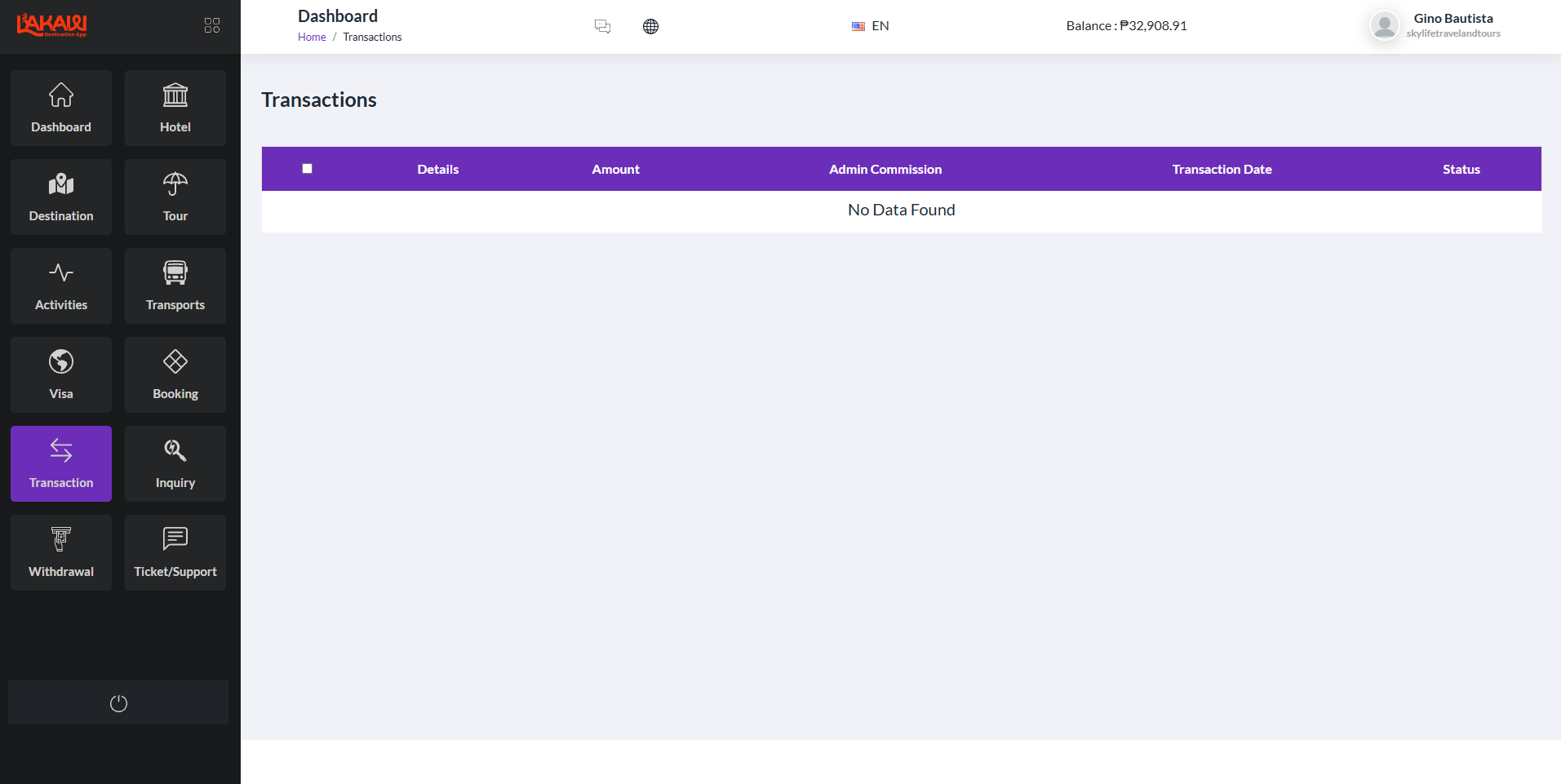
Transactions
Amount, admin commission, date, and status for money moving through the portal.
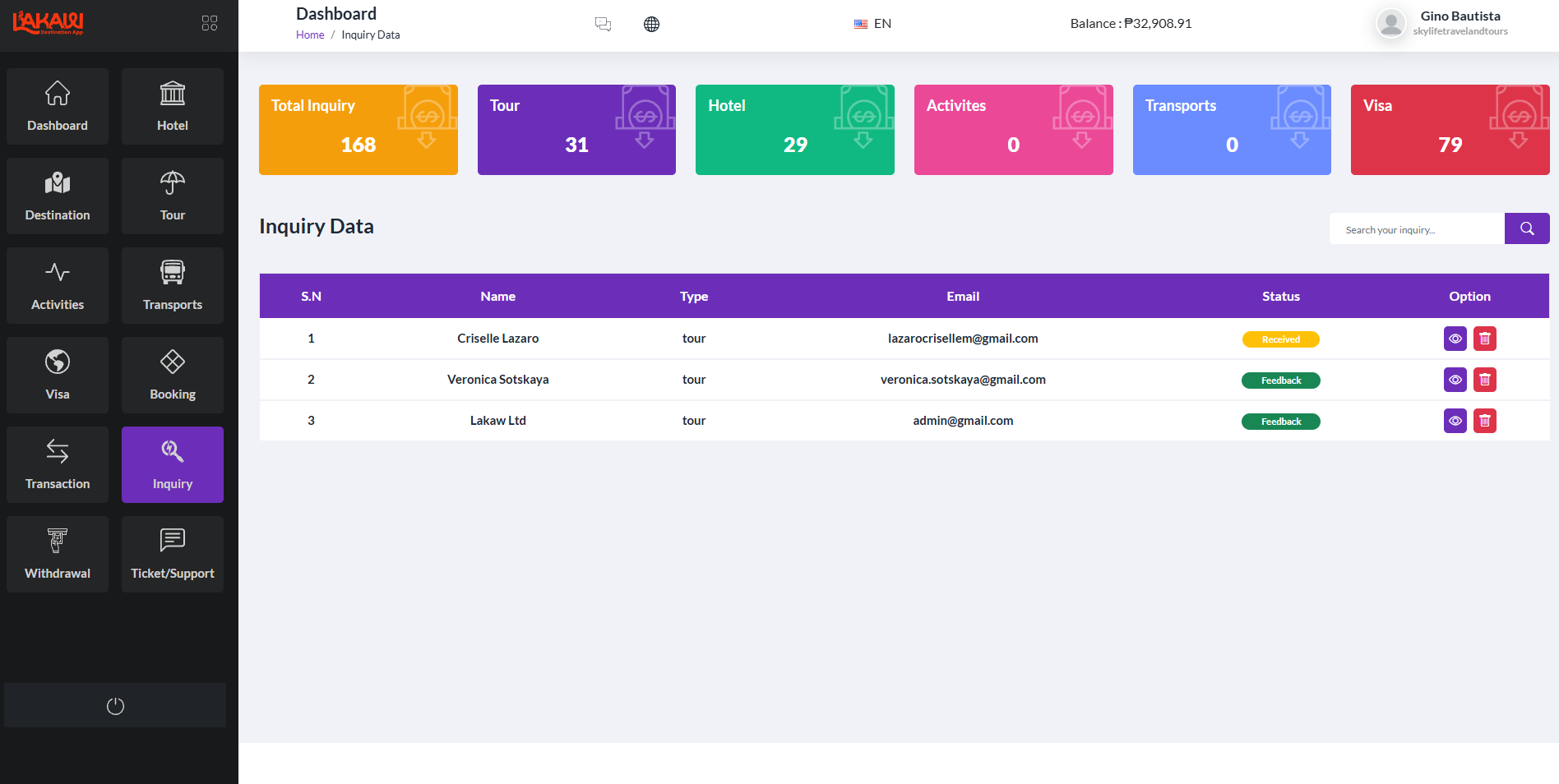
Inquiries
Counts for tours, hotels, activities, transport, and visas, plus each inquiry’s status.
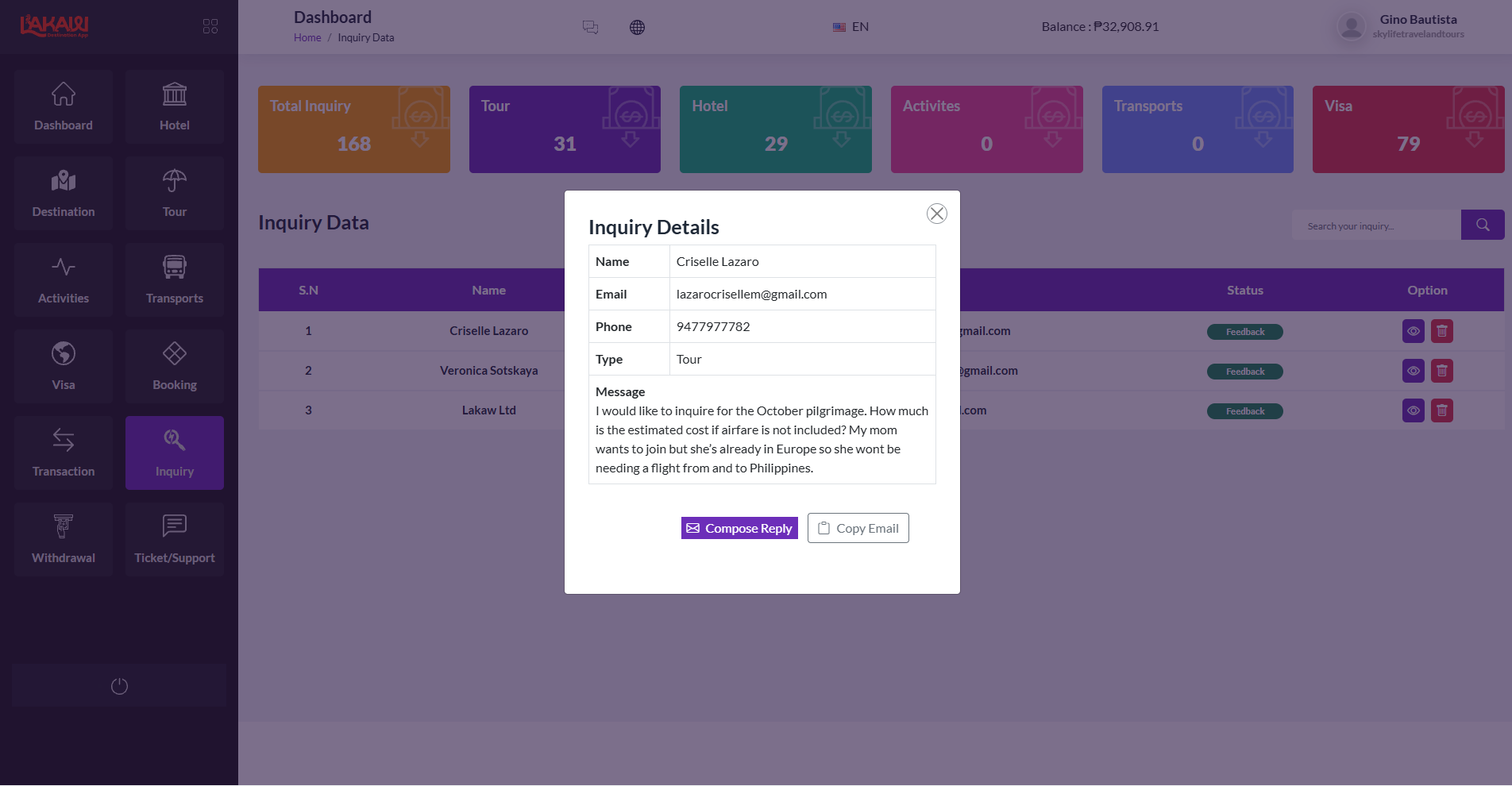
Reply to an inquiry
Open the message, compose a reply, or copy the traveler’s email.
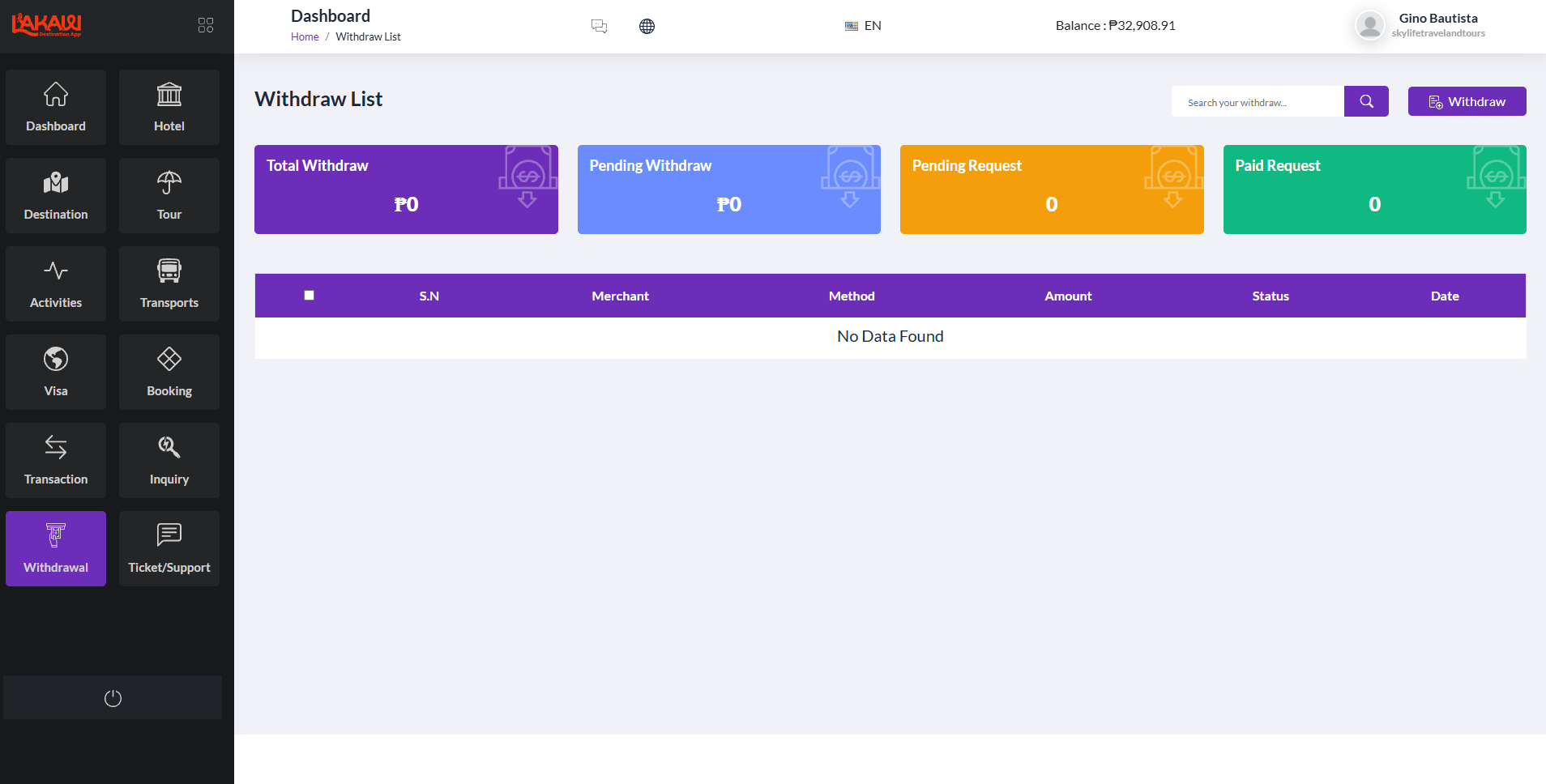
Withdrawals
Pending and paid requests sit next to the merchant balance so payouts stay visible.
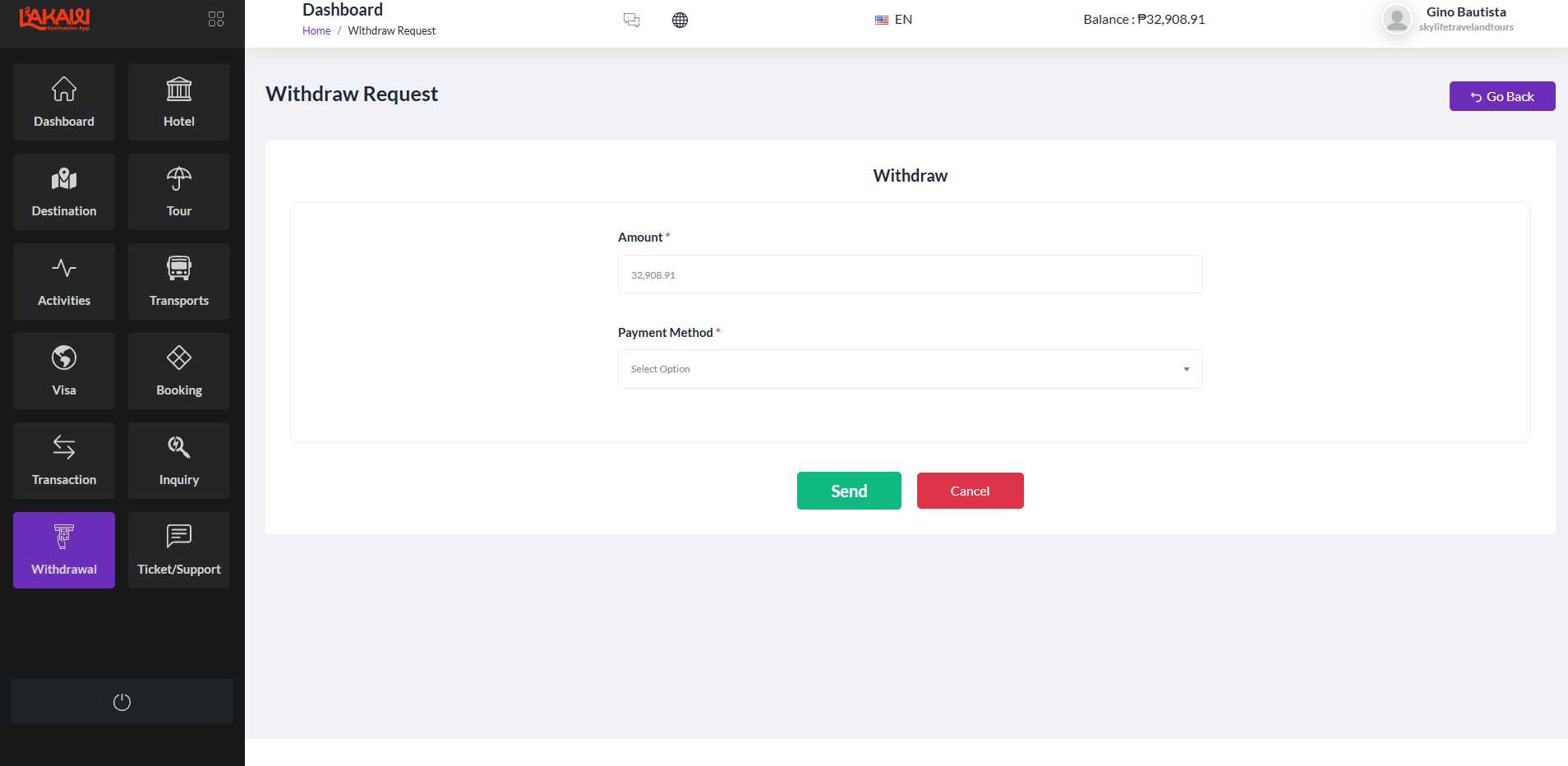
Request a withdrawal
Enter the amount and payment method, then send the request.
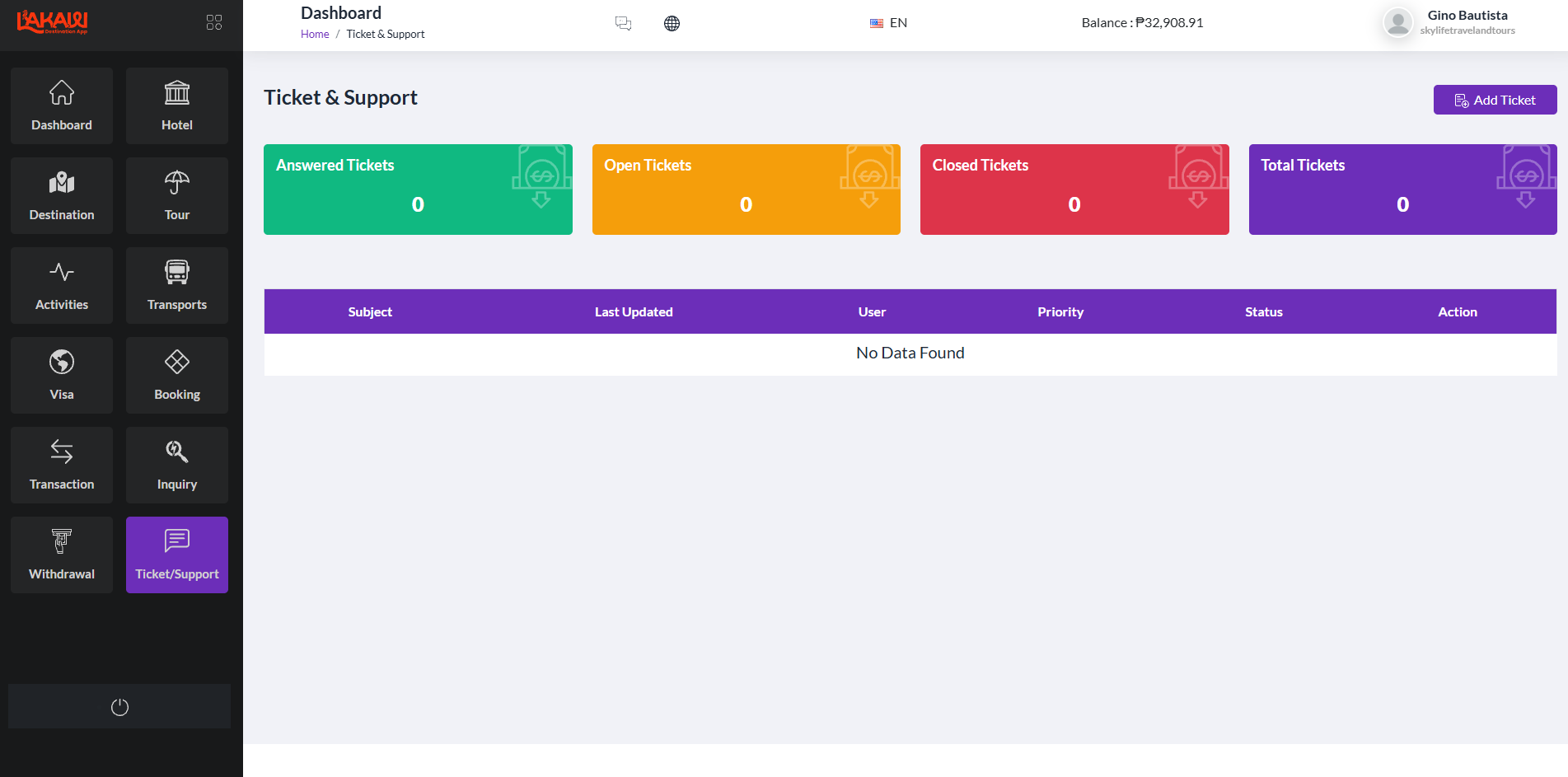
Tickets and support
Answered, open, and closed tickets, with subject, priority, and status.
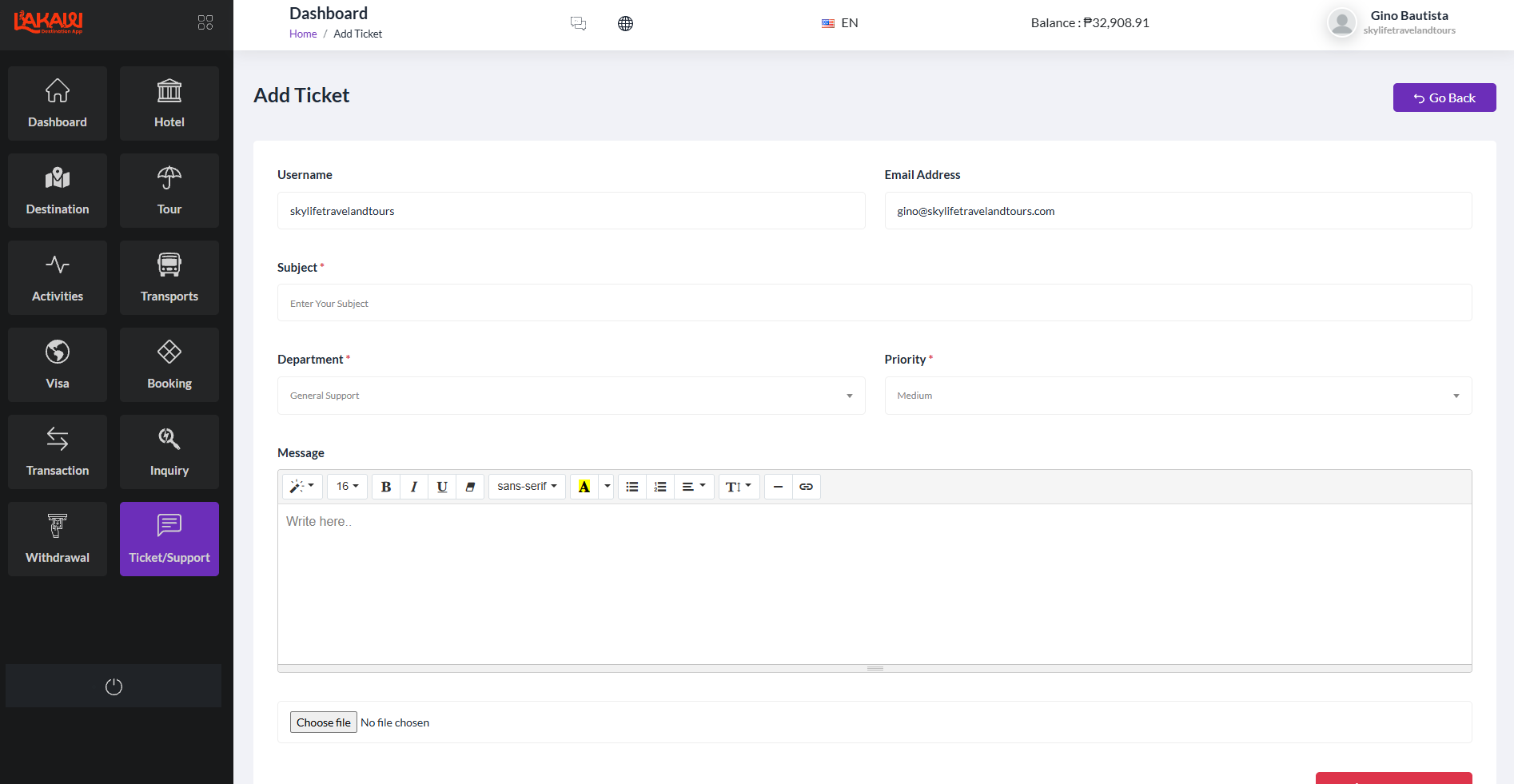
Open a ticket
Subject, department, priority, message, and an optional file for the support team.
Your agency
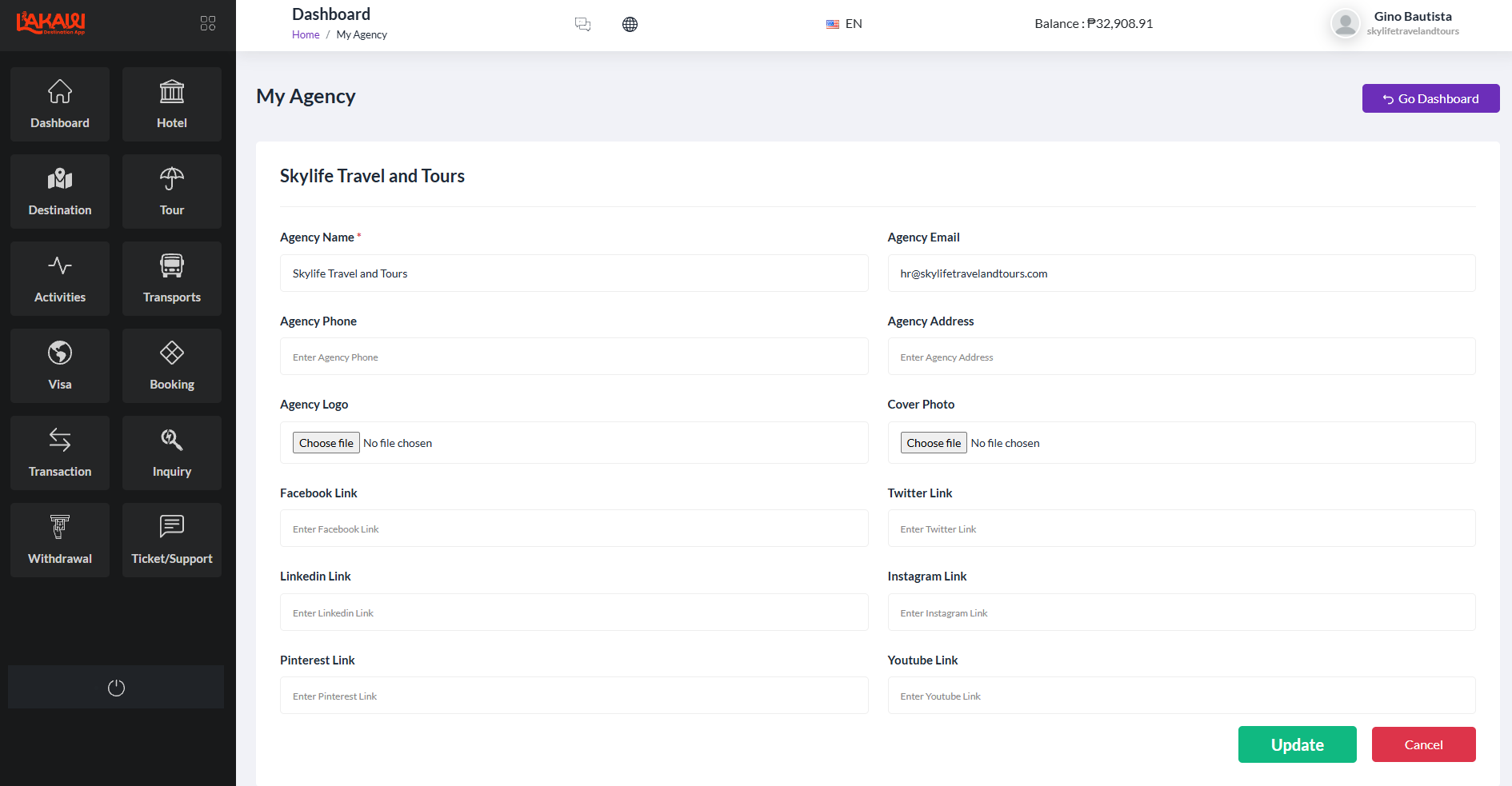
Name, email, phone, address, logo, cover photo, and social links for the agency profile.